Before you start
Meet a delivery size limit while preserving the details and document functions the recipient needs.
- First step
- Keep the original, identify native text versus scan content and try the four synthetic comparison PDFs.
Done when
- The exact exported copy passes your page, small-text, colour and required-function checks.
- The recipient accepts the correct file, and the original remains available when it has continuing value.
Limit of this method: The smallest candidate is not automatically acceptable, and the sample compression ratios apply only to the synthetic page.
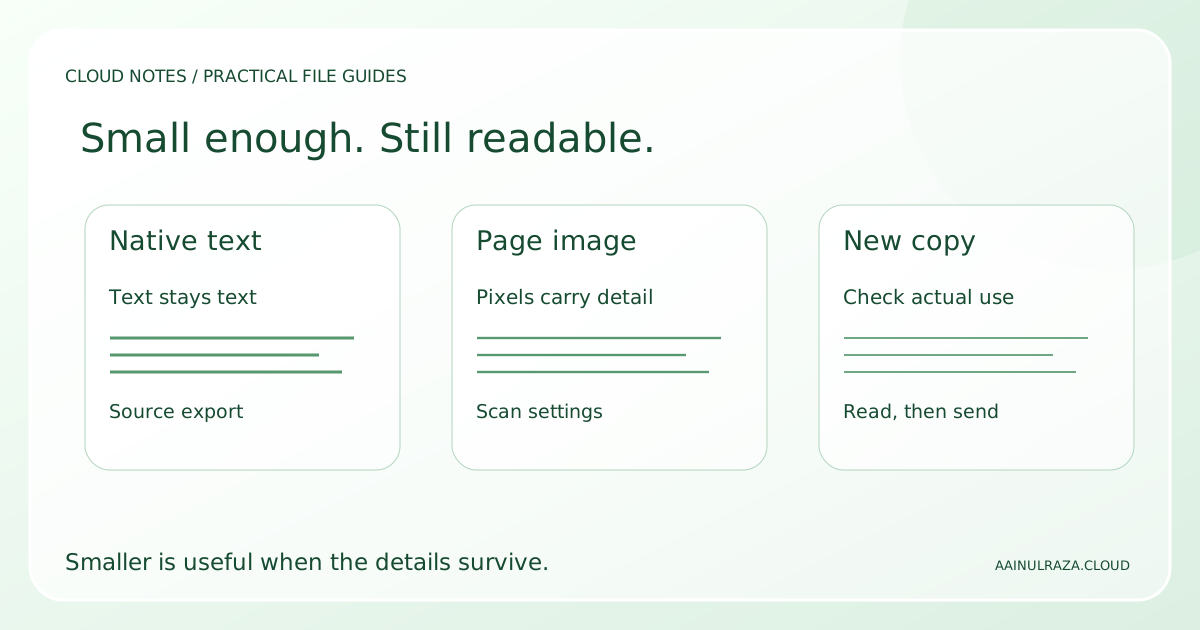

Record the upload limit, compare exported copies and verify readable details, complete pages and required functions.
Free text worksheet. No signup. Fill it locally; the site does not receive your entries.A form accepts a maximum of 2 MB, but your PDF is 7 MB. A compressor offers a tiny version, and the upload succeeds. Only afterward do you notice that the reference number is fuzzy, a colour key has disappeared or the recipient cannot select any text.
Reducing PDF file size is useful when the result still does the job. The right method depends on whether the document contains ordinary text, scanned pages, photos or a mixture. A PDF is a container; the extension alone does not tell you what can be reduced safely.
This guide explains a controlled workflow for everyday documents. It includes four synthetic sample PDFs you can download and compare. Their measured sizes demonstrate a tradeoff; they are not promised results for your files. Keep your original document throughout the process.
Start with the upload requirement, not the strongest preset
Write down the actual limit and the conditions that accompany it. A website may require one PDF, a maximum page count, a particular orientation or readable colour scans. A document intended for printing has a different job from a short screen-only reference.
Use the PDF size and quality worksheet to record the limit, original byte size, page count and important features. Decide what must remain usable: small text, handwritten notes, a colour diagram, searchable text, links or fillable fields.
If a recipient requires an unchanged signed or certified original, do not transform it to satisfy an upload limit. Ask for an accepted delivery route. A modified copy is not automatically equivalent to the supplied record.
Choose a target with a little room below the limit, then stop when a readable copy meets it. For an illustrative 2,000,000-byte maximum, a 1,800,000-byte candidate leaves 200,000 bytes of margin. That margin is a planning choice, not a universal standard or a guarantee about the receiving website's validation.
Identify what is inside the PDF
Open the original in a trusted local viewer. Try selecting a sentence, searching for an unusual word and zooming in on a heading. Treat these as clues rather than definitive inspection results.
A document exported from a word processor may contain native text that remains sharp as you zoom. A scanned page is primarily an image. A scanned PDF can also have an OCR text layer, which makes search possible even though the visible page is still a picture. A mixed document can contain all of these.
| What you observe | Likely starting point | First method to consider |
|---|---|---|
| Text is selectable and diagrams stay crisp | Native text or vector content | Re-export from the editable source |
| Text is a page image and gets blocky when enlarged | Scanned or photographed pages | Review image resolution and compression |
| Text is searchable but the visible page is still a scan | Images with an OCR layer | Preserve and recheck the text layer |
| A few photo pages dominate an otherwise small document | Mixed content | Change those images rather than every page |
| Forms, signatures or important interactive features are present | Feature-dependent document | Check requirements before any conversion |
This distinction prevents a common detour: turning a compact text document into pictures, then trying to compress those pictures back down. If you have the editable original, it is often the best place to begin.
Method 1: export again from the source document
For a document you created in desktop Word, open the source file and save a separate PDF candidate. In supported Windows Office versions, Microsoft's PDF export instructions describe choosing PDF in Save As or export and selecting Minimum size for online publishing when size matters more than print quality. The exact interface varies by version.
Use a name such as application-upload-v02.pdf, leaving application-original.pdf in place. Compare the PDF output itself. A correct Word document does not prove that the exported tables, page breaks and small labels are correct.
If large images are the main cause, review those source images before exporting again. A full-resolution photograph covering a small part of a page may contain more pixels than the intended use needs. Change a duplicate source document so that you can reverse the decision easily.
Do not open a complex received PDF in a word processor solely to compress it and assume the layout will remain intact. Reconstructing a document and exporting from its actual source are different processes. For material you did not create, start with a duplicate PDF and a tool suited to that content.
Method 2: make a controlled copy of a scanned PDF
For scan-heavy files, the available controls may include image resolution, colour mode and image quality. Start with one representative page containing the smallest text and the most important detail. A page with only a large heading is a poor test of a long application packet.
Change one setting at a time. For example, compare the original colour scan with a moderately downsampled copy before also reducing JPEG quality. If you change resolution, colour and quality simultaneously, you will not know which change damaged the result.
Grayscale can be suitable when colour carries no meaning. It is unsuitable when the reader must distinguish coloured annotations, highlighted categories or a colour-dependent chart. Likewise, a very small image can look acceptable as a thumbnail while failing at ordinary reading size.
A label such as medium compression has no consistent meaning across tools. Record the actual options when available and test the output rather than copying somebody else's preset name. There is no resolution setting that guarantees readability for every original scan.
A built-in route on a Mac
Apple's Preview instructions describe opening the PDF, choosing File, then Export, and selecting Reduce File Size in the Quartz Filter menu. Save under a new filename. Apple notes that resulting size and image quality can vary and that quality may be lower.
Treat that export as a candidate. Inspect it before using it. If the result loses needed detail, retain the original and try another appropriate method rather than repeatedly recompressing the degraded copy.
A practical choice on Windows
When you have the source, start with its PDF export controls. When you only have a scan, use a trusted local PDF tool that exposes image settings, if one is already available to you. This guide does not assume Windows includes a general-purpose PDF compressor.
A print-to-PDF route may produce a different file, but the print operation is not a promise of size reduction or feature preservation. Check the output for the functions your document requires. Avoid installing an unknown utility simply because it promises a particular percentage saving.
Download a four-file comparison lab
The PDF readability mini lab contains four one-page PDFs of the same artificial A4 checklist. It also contains a measurement file, hashes, a local comparison sheet and a Python reproduction script. No real names, signatures or personal records are used.
The native page was generated with ReportLab, rendered with Poppler at 300 pixels per inch, and used as the source for the three raster variants. Pillow produced the reduced grayscale JPEGs. The raster PDFs intentionally have no OCR layer. These are measured fixture results, not a test of Word, Preview or a commercial compressor.
| Included PDF | How it was made | Measured file size |
|---|---|---|
| 01-native-text.pdf | Native text and vector lines | 2,618 bytes |
| 02-scan-300ppi-rgb.pdf | Full-page 300 ppi RGB raster, lossless image encoding | 242,665 bytes |
| 03-scan-150ppi-gray-q75.pdf | 150 ppi grayscale JPEG, quality setting 75 | 96,810 bytes |
| 04-scan-72ppi-gray-q25.pdf | 72 ppi grayscale JPEG, quality setting 25 | 17,257 bytes |
The 150 ppi candidate is 145,855 bytes smaller than the 300 ppi raster. Dividing that difference by 242,665 gives about 60.1 percent. The smallest raster is about 92.9 percent smaller than that same raster baseline. Neither percentage tells you whether the reference number is readable.
Notice that the native text file is smaller than every raster version. In this controlled page, converting text into a scan created the storage problem. This does not mean all native PDFs will be tiny; photos, fonts, embedded content and document structure can produce very different files.
Compare the samples before choosing your own settings
Extract the mini lab ZIP into a local folder and open the four PDFs in the same viewer. Compare at the same zoom level, then zoom in on a detail. A screenshot displayed at a different size is not a fair comparison of readability.
Use this short experiment:
- Read the reference CN-026 / O0-I1-l and the amount 1,280.50 from each file.
- Inspect the 8 point line and the three thin rules.
- Check whether the three colour swatches remain distinguishable in a way useful to the document's purpose.
- Try selecting and searching for the reference in each file.
- Record the smallest copy you would accept for screen reading, and separately for printing.
In the native file, the text is actual PDF text. In the three raster samples, the page is an image without an added OCR layer. Some viewers can recognise image text themselves, so a viewer's successful search does not prove that the PDF contains native text or that another recipient's viewer will behave the same way.
The deliberately aggressive 72 ppi copy is there to expose a tradeoff, not as a recommended output. If you cannot distinguish a character confidently, it fails your test even if it meets the upload limit. Keep that acceptance rule for your real document.
Check five things in the final exported copy
First, check completeness. Compare the page count, the first and last pages, and any page where orientation changes. Look for clipped margins, missing attachments or blank pages introduced during export. For a short document, inspect every page.
Second, check reading details. View at a normal reading size and inspect small text, decimal points, dates, handwritten additions and diagrams. If the recipient will print it, print a representative page where practical. A good-looking preview thumbnail is insufficient evidence.
Third, check document functions. Try required links, text selection, search, bookmarks and form fields. A visually similar file can behave differently. Preserve the original if any required function disappears.
Fourth, check size and delivery. On Windows, the file's Properties dialog shows its byte size; on macOS, inspect its information. Use the receiving service's actual acceptance result. If a portal rejects a file that appears below its limit, read the exact message before trying stronger compression; the problem may be a different format or page requirement.
Fifth, check which copy you are sending. Reopen the exact file selected for upload or email. Similar filenames are an easy way to send the original oversized file or a failed test version. Use the sharing preflight when audience and access also matter.
Keep sensitive files out of unnecessary upload steps
An online compressor involves a file transfer to a service. Before using one, decide whether that is appropriate for the contents and your obligations. For identity documents, confidential records or material belonging to somebody else, prefer a suitable approved local workflow or ask the responsible organisation for an accepted route.
This is a delivery decision rather than a claim that every online compressor is unsafe. Review the specific service and its current terms if you choose to use it. The synthetic mini lab lets you explore the tradeoff without uploading a real record.
Compression also does not establish that private information has been removed. If you need to share only part of a document, treat content removal as a separate task. A smaller file can still contain every sensitive detail it contained before.
When to stop compressing
Stop when the copy meets the requirement and passes your acceptance checks. A 1.7 MB readable file can be a better answer to a 2 MB limit than a 400 KB file with uncertain digits.
If the file remains too large, return to the source and identify the largest content component. Consider splitting only if the recipient accepts multiple files and you can preserve the required order and context. A private file link may be an alternative when the recipient permits one; verify its access before sending it.
Do not delete required pages simply to cross a size threshold. Do not overwrite the original after obtaining one accepted upload. Keep a short note of the delivered filename, size, page count and checks so that you can reproduce the decision later.
Questions readers usually ask
Does putting the PDF in a ZIP always solve the size problem?
No. The receiving site may require a PDF, and already-compressed images may leave little room for further reduction. Check the accepted format before creating an archive.
Can I make every PDF smaller without losing quality?
There is no universal promise. Removing redundant structure and changing image data are different operations. Image downsampling or lossy compression can remove detail, so judge the actual copy against its intended use.
Why did the file get bigger after conversion?
The content representation or export settings may have changed. The lab shows one specific example: turning native text into a full-page raster made a larger file. Compare against the original rather than assuming any conversion is an optimisation.
Can I throw away the large original after a successful upload?
An accepted upload proves that a service accepted that copy. It does not prove that the copy is suitable for every future use. Retain the original when it has continuing value and follow your own retention requirements.
Sources, measurements and limits
The platform instructions were checked against Microsoft's PDF export guide and Apple's Preview compression guide on 26 October 2026. The four sample files, byte measurements and comparison exercise were produced for Cloud Notes. They illustrate one synthetic page and do not establish a universal compression ratio, accessibility result or document acceptance guarantee.
Examples are illustrative planning exercises unless a source says otherwise. Read our editorial policy for sources, AI assistance and corrections. See example data and checking methods for reproducible calculations and practice files.