Before you start
Show the recipient the needed evidence while excluding unrelated private details.
- First step
- Choose the exact question the screenshot must answer, then inspect the captured copy rather than only the screen.
Done when
- You reviewed the subject, edges, incidental details and exact exported image.
- The destination and intended audience match what the image actually discloses.
Limit of this method: Cropping and visual inspection do not establish that all metadata or hidden information has been removed.
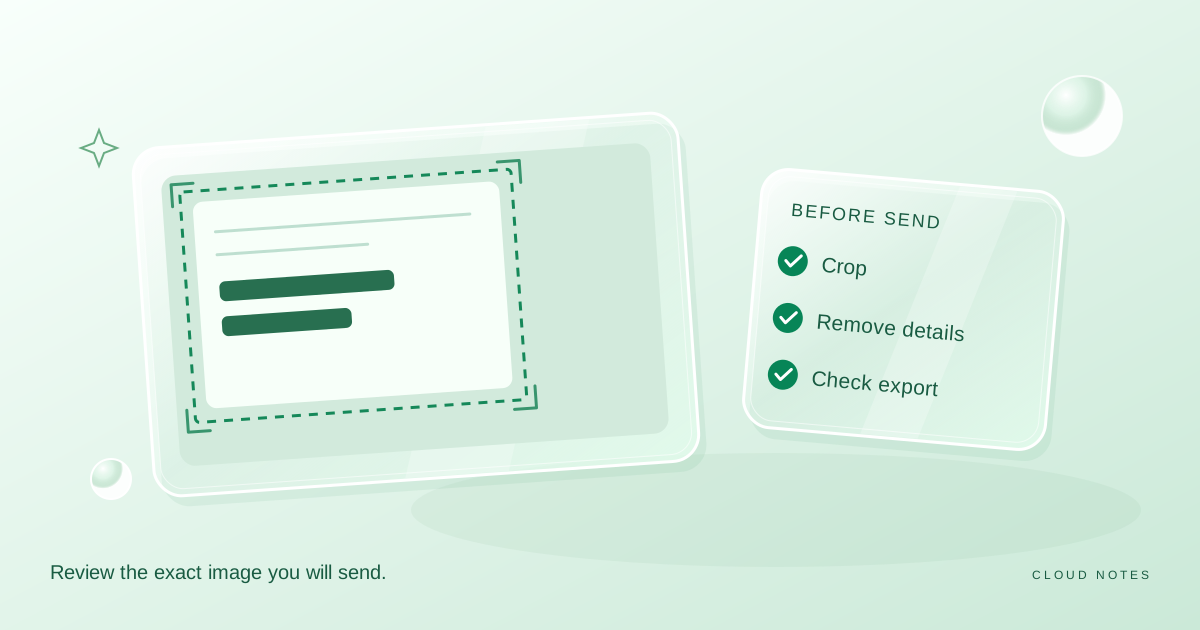

Inspect the subject, edges, incidental details, final export and destination.
Free text worksheet. No signup. Fill it locally; the site does not receive your entries.A screenshot often contains more than the question you want answered. A browser tab can reveal another project, an account menu can show an email address, and a notification can arrive just as you capture the screen. A useful screenshot review starts with the purpose of the message.
This guide proposes a manual check for everyday screenshots. It does not inspect an image, guarantee anonymisation or replace rules for confidential work. Use an approved process when your employer or a service requires one.
Decide what the recipient needs to see
Write the question in one sentence before capturing anything. If you need help with a layout issue, the recipient may need the page section and screen size. They usually do not need your account dropdown, another conversation or your complete desktop.
Choose the smallest view that still explains the problem. A very tight crop can remove necessary context, so keep a recognisable heading, an error message or an interface label where it helps the recipient understand the task.
If you need to show a transaction or account problem, first ask which details the legitimate support channel actually needs. Do not publish a full document in a public forum merely because the request involves one small field.
Prepare the screen before capturing
Close unrelated panels and move away from private content. If practical, clear notification previews temporarily according to your device's supported controls. Remember to restore any necessary alerts after the capture.
For a demonstration, use sample information instead of real customer or household data when you can. Clearly label sample values so they are not mistaken for a real record. Creating a clean demonstration can be safer than trying to remove many private details from a busy screen later.
Do not change live account records simply to make a screenshot look cleaner. Use an appropriate test view, a separate example or a more limited capture.
Inspect four areas in the captured copy
First, inspect the main subject. Look for names, email addresses, account identifiers, addresses, balances, messages and any credentials. Second, inspect the edges: browser tabs, bookmarks, account menus, sidebars and the operating system taskbar.
Third, look for incidental content such as a toast notification, a preview thumbnail or a recent files list. Fourth, inspect any text you added yourself. A helpful annotation can accidentally repeat the private value you just removed from the image.
Do this on the captured file rather than relying only on what you remember seeing on screen. A notification may have been visible for only a moment.
Make removal deliberate and check the export
Work on a copy. Use an appropriate image editor to remove or replace content that should not be disclosed. Do not assume that an annotation layer or a casually drawn highlight permanently removes the underlying information in every format.
Open the final exported image in a normal viewer and inspect it again at a readable zoom. Confirm that the area you intended to remove is absent, the necessary context remains, and the exported file is the one attached to your message.
For sensitive work, follow an approved redaction process. This article does not certify a particular editing method as irreversible or guarantee that all metadata or embedded information has been removed.
A worked support example
Suppose you want to ask why a button overlaps a heading on your personal website. The example below is illustrative. It is not a report of a real support incident.
| Area | Useful information | Unnecessary exposure to review |
|---|---|---|
| Page section | Heading, button and nearby layout | Account menu and unrelated private text |
| Browser context | Browser name and approximate window size in your message | Other tabs and bookmark titles |
| Capture file | Final readable exported image | Editable project with unrelated layers |
| Accompanying note | What you expected and what happened | Passwords or recovery information |
Start with the page section. Keep enough surrounding space to show the overlap. Write the browser and screen width in the message instead of including a complete desktop just to prove the size.
If the first image does not answer the question, add a second bounded view. One large screenshot containing every open panel is not automatically more useful than two focused images with clear captions.
Check the destination as well as the image
Confirm the recipient, conversation and attachment before sending. A carefully edited image can still reach the wrong audience. A public community thread, an internal channel and a direct support ticket have different visibility.
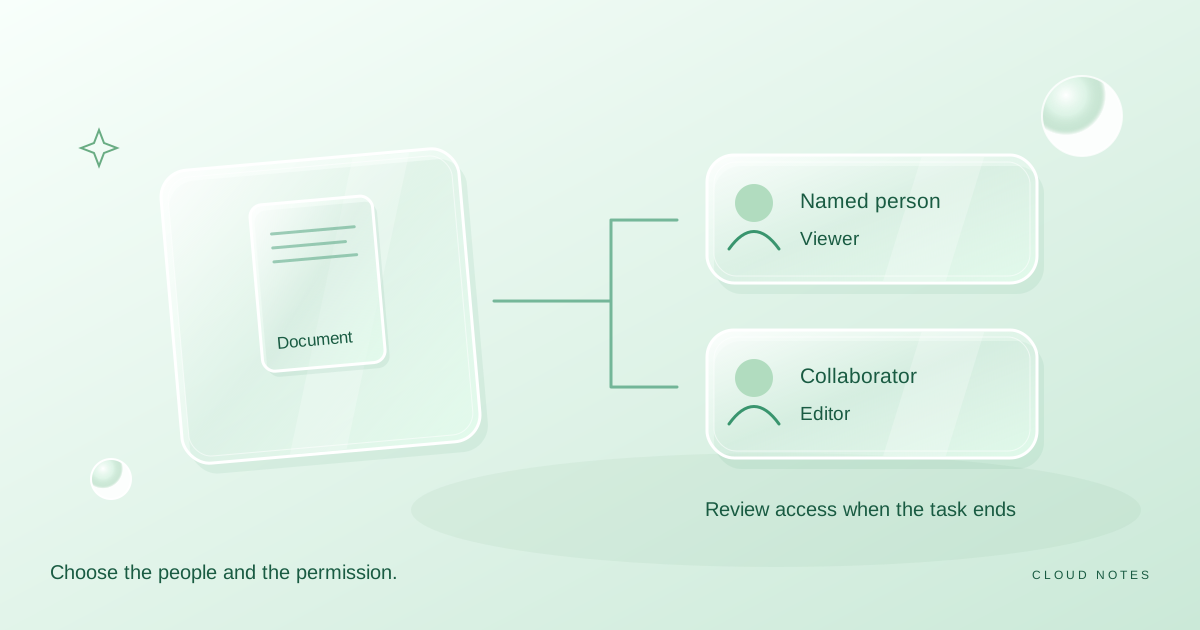
If you are sending a cloud link, check the access setting on the file itself. The file sharing guide explains why the privacy of a conversation does not determine the permission on a linked document.
Avoid putting sensitive details in the exported filename. A neutral description such as layout_example.png may be enough. Check the attachment preview one final time so you do not accidentally send the unedited original beside the edited copy.
Use a repeatable preflight
The downloadable review sheet has a purpose field, four inspection areas, an export check and an audience check. It is a reminder you complete yourself. It does not examine the file or prove that an image is safe to publish.
Keep the sheet free of the secrets you are trying to protect. Write account details removed rather than copying those details into the checklist. If a screenshot needs extensive editing to become shareable, consider whether a clean sample would explain the problem more clearly.
A two-pass disclosure review you can reproduce
The first pass asks whether the screenshot answers the recipient's question. The second checks what a stranger could learn if the same exported image were forwarded beyond its intended audience. Those are different tests: an image can be useful to support staff and still expose unrelated information.
For an **illustrative support screenshot**, suppose the issue is a settings toggle not saving. Keep the toggle, the relevant error message and the application version if needed. Review the browser tabs, account selector, notification previews, recent-file names, full URL, device clock and any visible access token before sending. The recipient may need the first three items; the others usually need separate justification. These are invented elements of an example, not a screenshot or observation from a real account.
| Pass | Ask | Safe completion signal |
|---|---|---|
| Task usefulness | Can the recipient understand the toggle failure? | The control state and relevant message are readable |
| Unnecessary disclosure | Does any other account, person or private path appear? | The final exported file has been reopened and inspected |
| Export integrity | Is the file being sent the version you reviewed? | The attachment thumbnail and opened export match |
A blur effect may be reversible or insufficient in some workflows. If confidentiality matters, cover the sensitive region with an opaque replacement in a suitable editor or recreate the example using invented data, then **open the exported file**. This is a manual preflight, not a guarantee against metadata leakage or a substitute for your organisation's secure sharing policy.
Common questions
Is cropping enough?
Sometimes it removes the unnecessary area, but inspect the actual exported image. Cropping does not tell you whether relevant private details remain inside the retained area or whether a different attachment is being sent.
Can I share a sample instead of a real screenshot?
Often, yes. Label it as a sample and preserve the behaviour or context that matters to the question. Do not claim a mockup is evidence of a real transaction or error.
Does this checklist remove image metadata?
No. It is a manual review aid. Use the appropriate current export controls or an approved process where metadata or irreversible redaction matters.
What should I do if I cannot tell whether something is private?
Use a smaller example, ask the legitimate recipient what is necessary, or follow your organisation's guidance. Uncertainty is a reason to review the disclosure, not a reason to publish the full screen.
Examples are illustrative planning exercises unless a source says otherwise. Read our editorial policy for sources, AI assistance and corrections. See example data and checking methods for reproducible calculations and practice files.