Before you start
Match the exact file, audience and role to the task before sending a link.
- First step
- Name the intended people and inspect the content and parent-folder context before choosing a permission.
Done when
- You checked effective access in the actual provider and reopened the intended current item.
- The recipient knows the next action, and ongoing access has a review point.
Limit of this method: The on-page preflight is a decision aid; it cannot inspect permissions or make a disclosure appropriate.
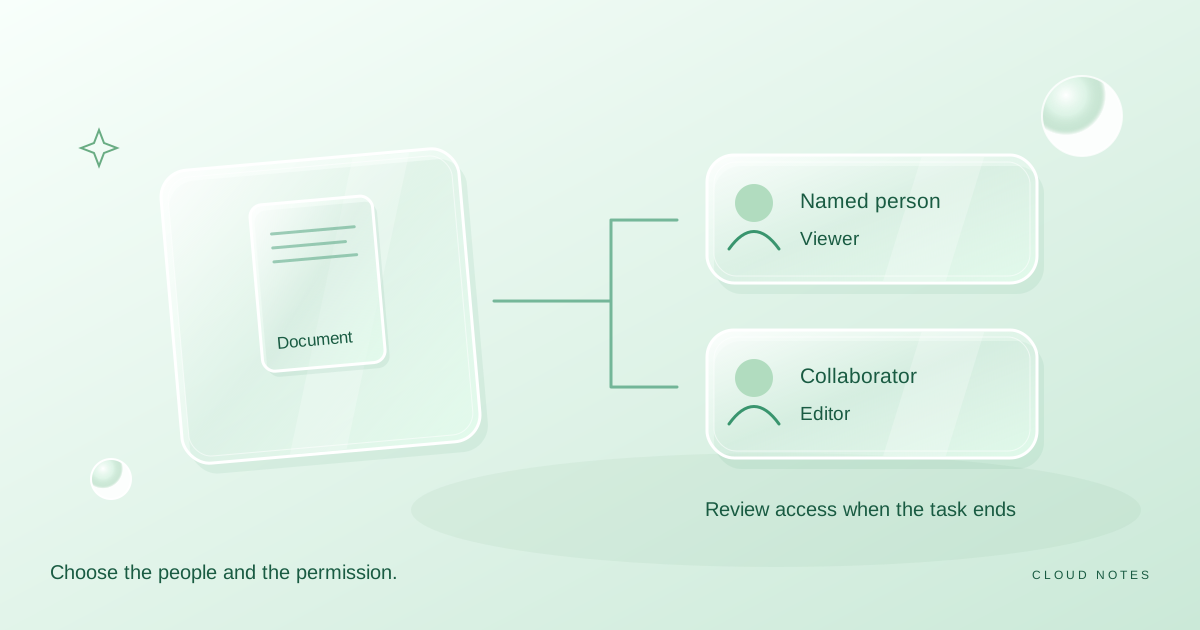

Record audience, role, content review and a clear delivery note.
Free text worksheet. No signup. Fill it locally; the site does not receive your entries.Copying a link feels like a small action. It can still give access to a file, an editable document or a wider folder. A reliable sharing routine asks four questions: who should receive it, what should they be able to do, what is inside, and when should access end?
This guide is about everyday document sharing. It does not inspect your accounts or promise to audit permissions automatically. Organisational rules may impose additional requirements.
Start with a named audience
Write down the intended people. If the file is for one reviewer, that is a different situation from publishing a public event schedule. Prefer an access setting that matches the actual audience.
Google Drive's help distinguishes restricted access from access for anyone with the link. It also describes viewer, commenter and editor roles. Check the current options available in your own account, because an organisation may restrict them.
A link can be forwarded. Do not assume that sending it in a private conversation makes the underlying file private. The file's access setting determines who can open it.
Choose the least permission the task needs
If someone only needs to read the document, consider view access. If they need feedback without changing the body, commenting may fit. Use editing when collaboration requires it.
Describe what you expect in the message accompanying the link. Please review pages two and three and leave comments by Thursday gives the recipient a clear task. It can also prevent accidental edits caused by an unclear request.
Avoid giving editor access solely because it seems easier. More permission may create unnecessary changes or make the final version harder to identify.
Inspect the content you are sharing
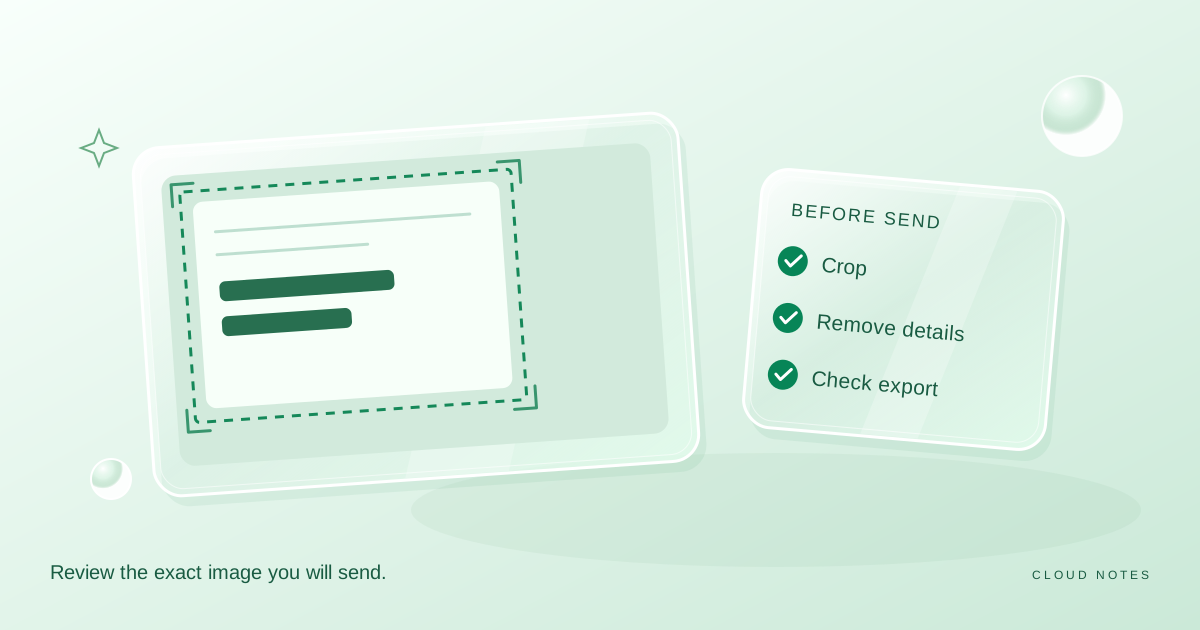
Open the exact file, not another tab with a similar name. Check its title, current version and visible content. Look for personal details, unrelated pages, comments, hidden sheets or material copied from another project.
What is retained depends on the file format and export method. If you create a sharing copy, open that copy and inspect it independently. An exported PDF should be checked as a PDF; a spreadsheet should be checked for the information it actually includes.
Do not assume a filename such as public means the contents are appropriate for publication. The audience decision and the content review are separate tasks.
Check the folder context
If you share a folder, review every item that belongs in the recipient's view. Avoid using a large mixed personal folder simply because it already exists. A dedicated delivery folder can make the intended scope clearer.
Look at the actual permission panel for the file and parent location. Permission inheritance and organisation settings can complicate the result. If the scope is unclear, pause and use the provider's current documentation or your administrator's guidance.
Do not place a private document inside a shared folder and rely on an untested assumption that its individual setting hides it.
Verify the intended access
Confirm the recipient identity and role before sending. Ask the recipient to verify that they can open the intended item when that is practical. Do not solve an access error by making an important private file public as the first response.
For an intentionally public file, a signed out browser check can help confirm public access. For a restricted file, that same test should not be expected to prove that a named recipient has permission. Different tests answer different questions.
Check whether you sent the current version. A clean permission setup does not help when the link points to an obsolete document.
Give the sharing task an end point
When the review or delivery is complete, revisit access. Remove unnecessary permission where appropriate and retain the authoritative final version according to your needs or organisational rules.
Record sensitive or long running sharing arrangements in a small log: item, audience, role, purpose and review date. The log should not include secrets or unnecessary personal information.
Remember that revoking access does not necessarily remove copies someone already downloaded or information they already saw. Review the content and audience before sending rather than relying on a later reversal.
A preflight to copy
- Correct document and current version.
- Intended people or explicitly public audience.
- Appropriate viewer, commenter or editor role.
- Content checked for unrelated or private material.
- Folder context and access panel reviewed.
- Clear recipient instructions and review date.
Compare three everyday sharing situations
An access decision should match the audience and the task. These examples explain a review process; they do not claim to set or inspect permissions in any service.
| Situation | Audience to verify | Role to consider |
|---|---|---|
| A friend reviews a private draft | The named friend's correct account | Commenter if feedback is the task |
| A colleague continues an agreed document | The authorised collaborator | Editor if changes are required |
| A public event schedule | Intentionally public recipients | View only if no editing is needed |
A public schedule and a private draft may both be PDFs, but the file extension does not determine the appropriate audience. Conversely, sending a private draft in a direct message does not make an unrestricted cloud link private.
For the private draft, open the permission panel, confirm the correct identity and choose the applicable role. Then inspect the actual file for comments, extra pages or unrelated content. If the recipient cannot open it, investigate the account and permission mismatch before widening access.
Review after the task ends
Record a purpose and a review date for ongoing access. At the end of the review, decide whether the recipient still needs access and where the authoritative final copy lives. A calendar note is a reminder, not an automatic revocation feature.
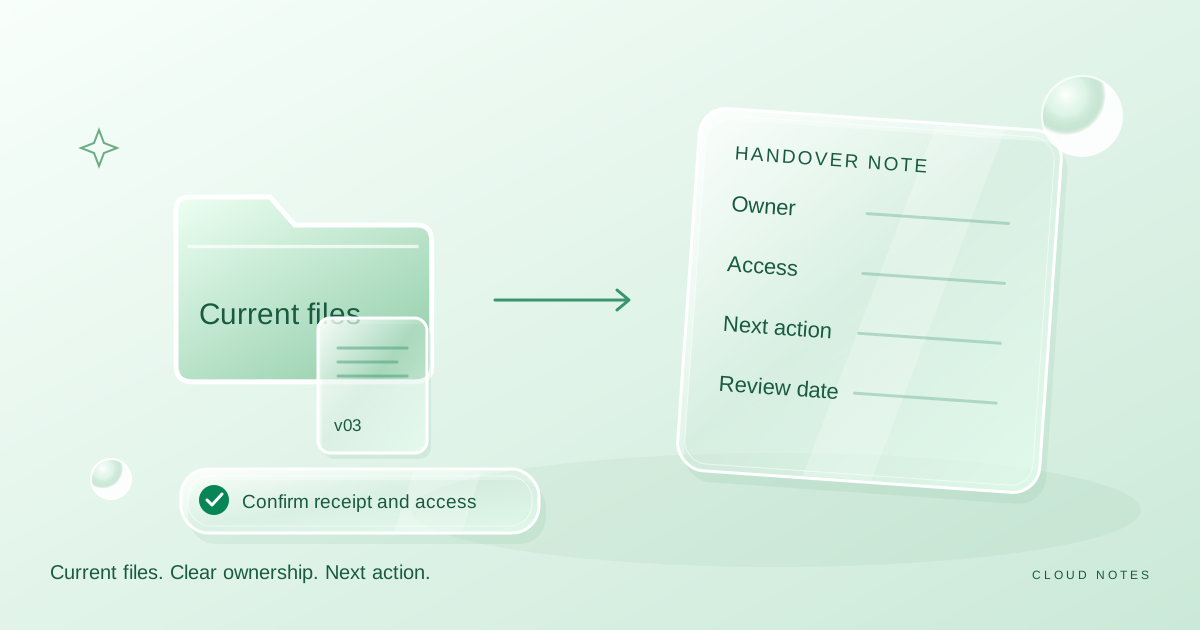
Use the sharing preflight tool to organise those decisions, or download the sharing worksheet. If the delivery contains several items, continue with the shared folder handover guide.
A decision matrix before you send
Imagine three different requests for the same draft document. The requested action—not the recipient's familiarity—determines the starting permission. These are fictional planning situations; verify the actual controls in your file service.
| Recipient's task | Permission to consider first | What to verify afterwards |
|---|---|---|
| Read the latest draft | Viewer | The intended account opens the correct file without edit access |
| Comment on unclear sections | Commenter, when supported | Suggestions do not unexpectedly change the original |
| Revise the working copy | Editor | The change history and recovery route are understood |
Now add a second question: **when should this access end?** A one-time external review may justify an explicit calendar reminder to revoke access. A project collaborator may require a longer period. A public link can be forwarded, so do not treat possession of the link as an identity check.
Before closing the task, use a permitted second account to verify effective access where possible. Do not test by adding random people or by sharing confidential data with someone merely to see whether the link works. Document the account tested, requested permission, observed result and planned review date—not private credentials.
Questions before sending
Does viewer access stop every possible copy?
Do not assume it does. The recipient may already have information or a permitted copy. Review what is disclosed before sending and check the provider's actual available controls.
Can this website verify my permissions?
No. The preflight uses your answers to suggest a review path. It has no connection to your account and does not inspect effective access.
Source and scope
Google Drive Help: Share files from Google Drive. Consulted 14 October 2026. Provider specific descriptions are limited to documented access concepts; the preflight is our suggested workflow.
Examples are illustrative planning exercises unless a source says otherwise. Read our editorial policy for sources, AI assistance and corrections. See example data and checking methods for reproducible calculations and practice files.