Before you start
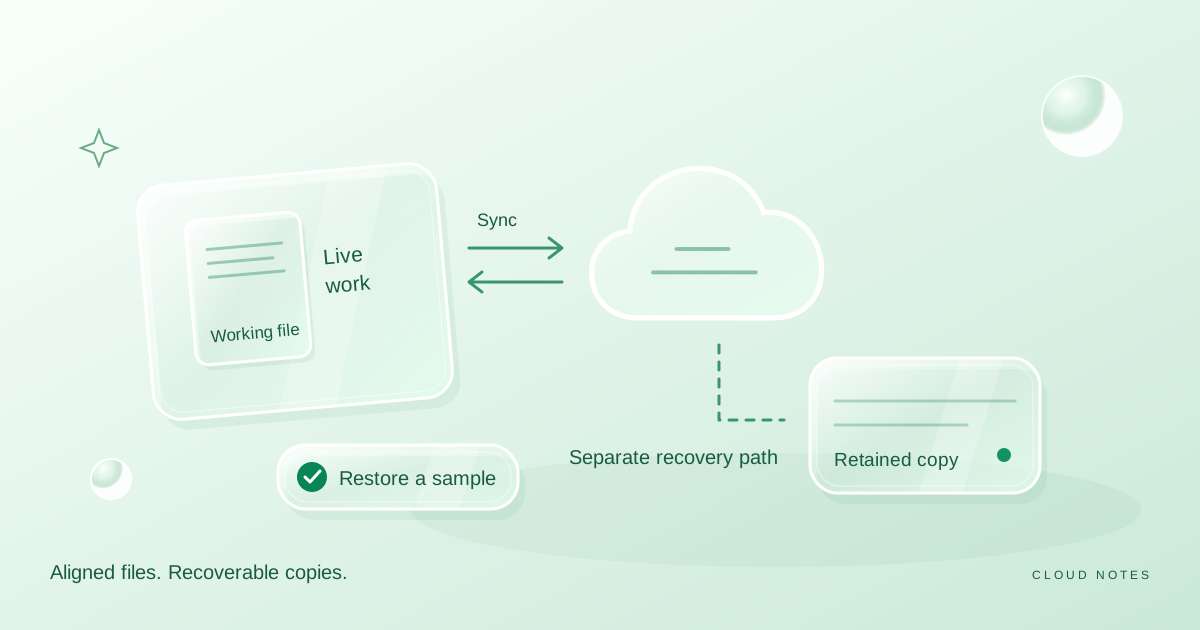
Replace a vague backup intention with a recovery destination and a harmless restore observation.
- First step
- Pick one important file group and record its source, retained destination and acceptable loss window.
Done when
- A harmless sample has been restored and opened from the intended recovery path.
- Your log distinguishes the intended copy, completed copy and observed recovery result.
Limit of this method: A successful sample is evidence about that sample and time; it does not certify every file or future recovery.
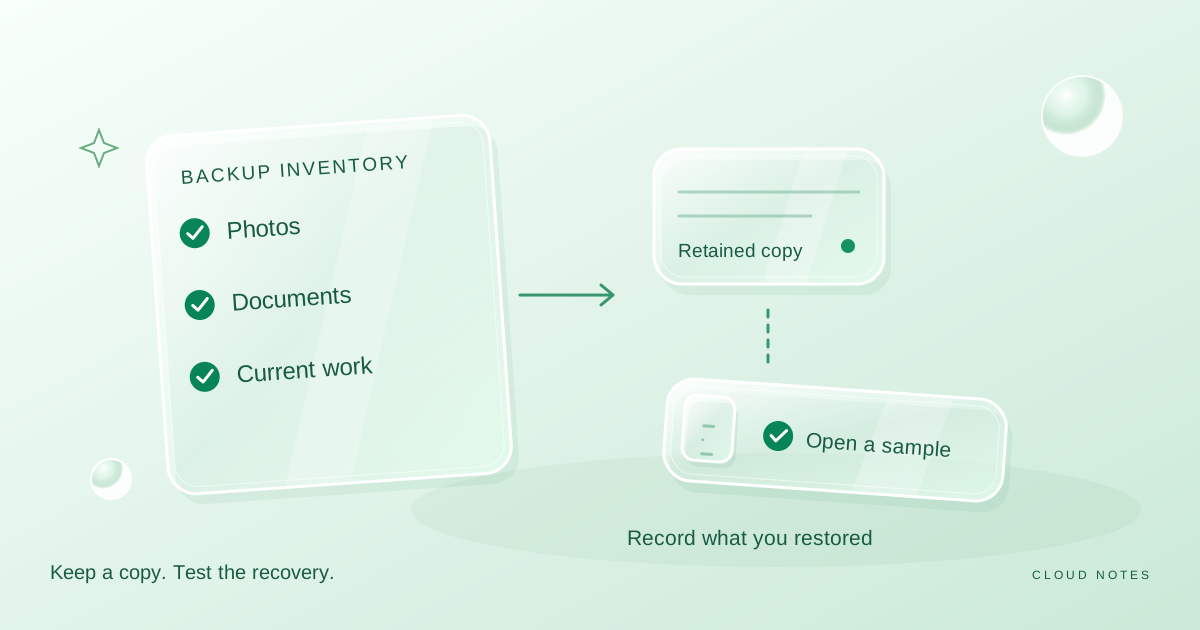

Separate intended copies, completed copies and actual restore observations.
Free text worksheet. No signup. Fill it locally; the site does not receive your entries.A backup reminder that says back up everything is difficult to act on. You need to know which files matter, where they are, how they will be copied and what evidence will show that the copy worked.
Start with a one page checklist. The point is to make recovery possible for ordinary problems without turning your personal storage into a large technical project.
Write a small inventory
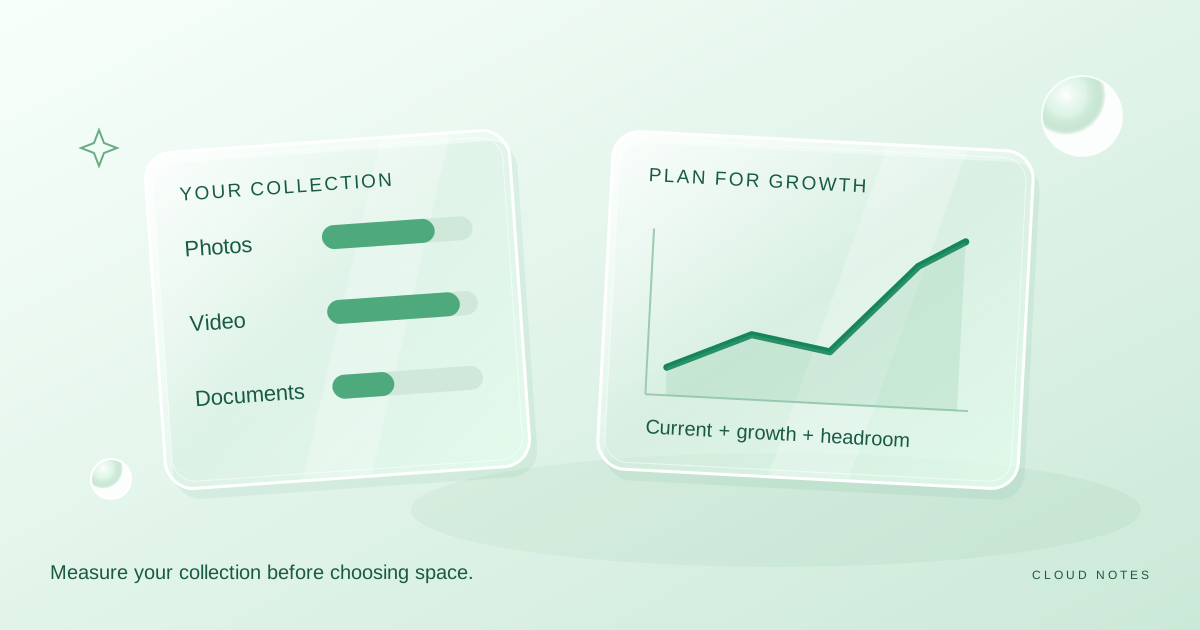
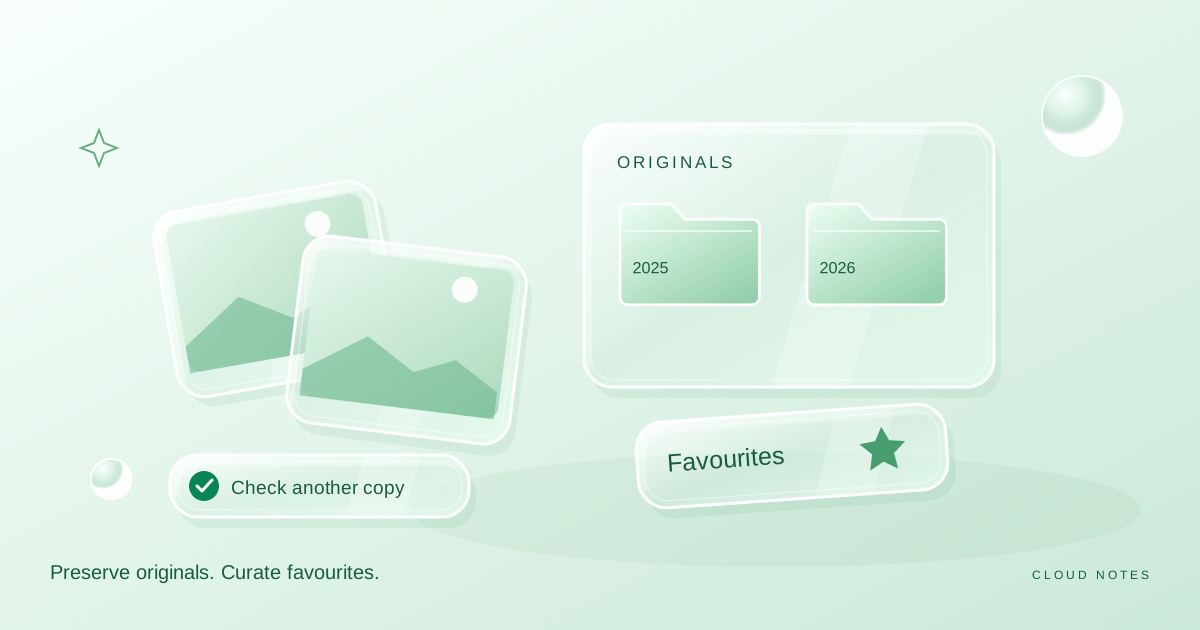
List personal photos, documents, current projects and any other irreplaceable material. For each group, record its location and a rough size. Also note whether it changes daily, weekly or only occasionally.
Separate original data from things you can reinstall or download. A program installer is not the same as the personal files the program creates. Some apps keep data in an account or a special database rather than a normal document folder. Check how those apps export or back up before assuming a folder copy covers them.
An example inventory could contain 80 GB of photos, 3 GB of documents and 2 GB of current study work. These are illustrative amounts, not a claim about a typical household. They help make the copying schedule and destination capacity concrete.
Assign a recovery destination
For every group, record a second location that contains a usable copy. For especially important files, consider another copy away from the same physical location. CISA's published backup guidance describes the 3-2-1 principle: three copies, two kinds of storage media and one copy offsite.
The principle helps you think about independent failures. It is not a promise that any arrangement using three folders is safe. Three folders on one failing disk can all be lost together. Two accounts using the same forgotten recovery method may also share an access problem.
Choose destinations you can maintain. An external drive that is never connected for copying will become stale. A cloud destination that depends on an expired subscription may stop accepting new files. Record these dependencies alongside the location.
Decide the acceptable loss window
Ask how much new work you could recreate. If you write daily and would hate to lose three days, a weekly copy does not match that need. If a finished archive changes twice a year, copying it every hour may add unnecessary work.
Set a simple schedule for each group. For example, copy current work at the end of each workday, update documents weekly and copy new photos after every import. These are sample choices. Select your own frequency based on the consequences of losing recent changes.
Record the last completed copy, not merely the next scheduled date. A reminder tells you what should happen. A completion record tells you what actually happened.
Check what the copy contains
After a copy, compare a small sample of source and destination items. Open a document, a recent photo and a file from a deeper folder. Confirm that the destination is a real copy, not a link to the original or a placeholder that still needs the original account.
If the method creates a backup archive, use its normal restore process on a harmless sample. A large archive that you cannot open does not meet the goal. Keep the instructions and any required access information available securely.
Avoid deleting originals during this check. Verification should add evidence without creating a new recovery problem. Copy a test item into a separate Restore practice folder and compare its contents.
Keep a restore record
Use four columns in a text file: date, file tested, destination used and result. A result such as opened the photo from the external drive with the laptop offline is more useful than backup okay.
Run a small test after a major change. Examples include switching backup software, changing a destination, replacing a computer or reorganising a large folder. Repeat occasionally even when the setup stays the same, because a routine can silently stop.
You do not need to restore the entire collection to learn something. Start with an important but harmless sample, then check any file type whose recovery process differs.
A checklist to copy
- Identify originals and app specific exports.
- Check available space at each destination.
- Copy according to the agreed schedule.
- Record successful completion and any errors.
- Open sample files from the destination.
- Keep an offsite route for irreplaceable material.
- Keep access and recovery instructions securely available.
- Review after device, account or storage changes.
Build a realistic loss window
Suppose a project changes each weekday and you make a copy every Friday evening. A problem just before Friday's copy could leave nearly a working week of changes absent from that retained copy. A calendar reminder every day does not shorten the gap unless a copy actually completes.
The example below uses invented file groups to show the decisions. It is not a recommended schedule for every household.
| File group | Example change pattern | A copy rule to consider |
|---|---|---|
| Current writing | New material each workday | Copy after each writing session |
| Household documents | A few additions per week | Copy weekly and after important additions |
| Finished photo event | Changes during import and editing | Copy after verified import and after final edits |
| Replaceable installers | Irregular, usually downloadable again | Confirm replaceability before assigning effort |
Choose a rule you can explain in terms of acceptable lost work. Then identify the destination and the observation that confirms completion. The observation might be a successful run record plus opened sample files. A folder modification date alone is weaker evidence because it does not describe what was copied.
Handle an incomplete copy
If a copy reports a problem, record that problem and keep the previous usable copy. Do not erase the previous destination solely to make a fresh start. Identify whether the problem is space, access, a missing source folder or a method specific error, then use the relevant current documentation.
After changing the method, repeat a harmless restore test. That closes the loop between a planned fix and a usable result.
Download the inventory and test log. Use a separate line for each destination so an incomplete copy is visible rather than hidden behind a single checked box.
Common questions
Can I erase an old backup when the new one finishes?
First check that the new copy is usable and that removing the old one will not eliminate the only retained version you might need. Keeping only the newest copy can preserve a recent mistake.
How large should the destination be?
Allow for the current data, expected growth and retained versions. Our storage estimator helps model a working copy; backup history may require additional space beyond that estimate.
Source and scope
CISA: Data Backup Options. Consulted 14 October 2026. The checklist and example inventory are editorial suggestions for personal use, not a guarantee of recovery.
Examples are illustrative planning exercises unless a source says otherwise. Read our editorial policy for sources, AI assistance and corrections. See example data and checking methods for reproducible calculations and practice files.