Before you start
Distinguish aligned working files from a retained copy you can actually recover.
- First step
- Choose a harmless file and document the working location, retention behaviour and recovery route.
Done when
- A recovery test reopened the intended version from the retained destination.
- The recovery path accounts for the failure you are trying to survive, including account or device loss where relevant.
Limit of this method: A sync status badge alone does not show that an earlier state remains recoverable.
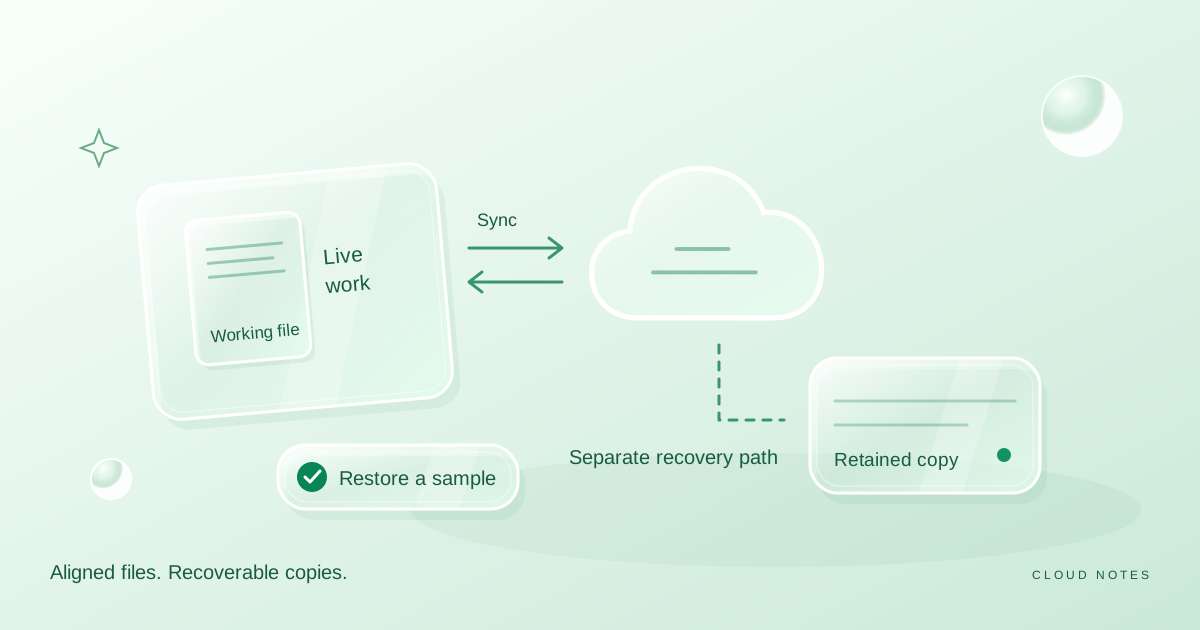

Separate intended copies, completed copies and actual restore observations.
Free text worksheet. No signup. Fill it locally; the site does not receive your entries.You save a document on your laptop and it appears on your phone. That is useful synchronisation. It tells you that two views of the file can stay aligned. It does not tell you everything about how to recover an older version, survive a mistaken deletion or regain access after losing an account.
Treat cloud services as tools with specific behaviours. Some combine syncing, version history, recovery features and backup options. The relevant question is what your actual account retains, for how long, and whether you can retrieve it.
Separate three jobs
Storage gives a file somewhere to live. Sync carries changes between locations. Backup retains a recoverable copy according to a policy. One service can perform more than one job, but its marketing name is not enough to explain its recovery limits.
Microsoft's OneDrive documentation explains that additions, edits and deletions in a synced folder are reflected on the website and vice versa. This is convenient for daily work, but means a deletion may travel with the rest of your changes. Check the documentation for your own service before assuming it behaves the same way.
Imagine a recipe document stored in a synced folder. If you accidentally replace half of its text, the changed file may become the current version elsewhere. An older retained version could help, if it exists. A separate dated copy could also help. Two devices displaying the same current file are not necessarily two independent recovery options.
Inventory the files you cannot replace
Write down three groups: irreplaceable personal files, active work and replaceable downloads. Family photos and an original manuscript usually deserve more care than an installer you can download again.
Record where the originals live, the approximate amount of data and how often it changes. Do not start by buying more storage. First identify the failure you want to survive: a broken laptop, accidental deletion, loss of account access or damage at home.
A plan for a broken laptop might rely on another accessible location. A plan for an account lockout needs a recovery route outside that account. A plan for damage at home needs a copy away from the same physical location. Write each failure next to the copy you expect to use.
Check retention and access
For your chosen service, find the current documentation for deleted files, version history, export and account recovery. Record the applicable limits for your plan and account type. Do not assume a personal account and a work account have identical settings.
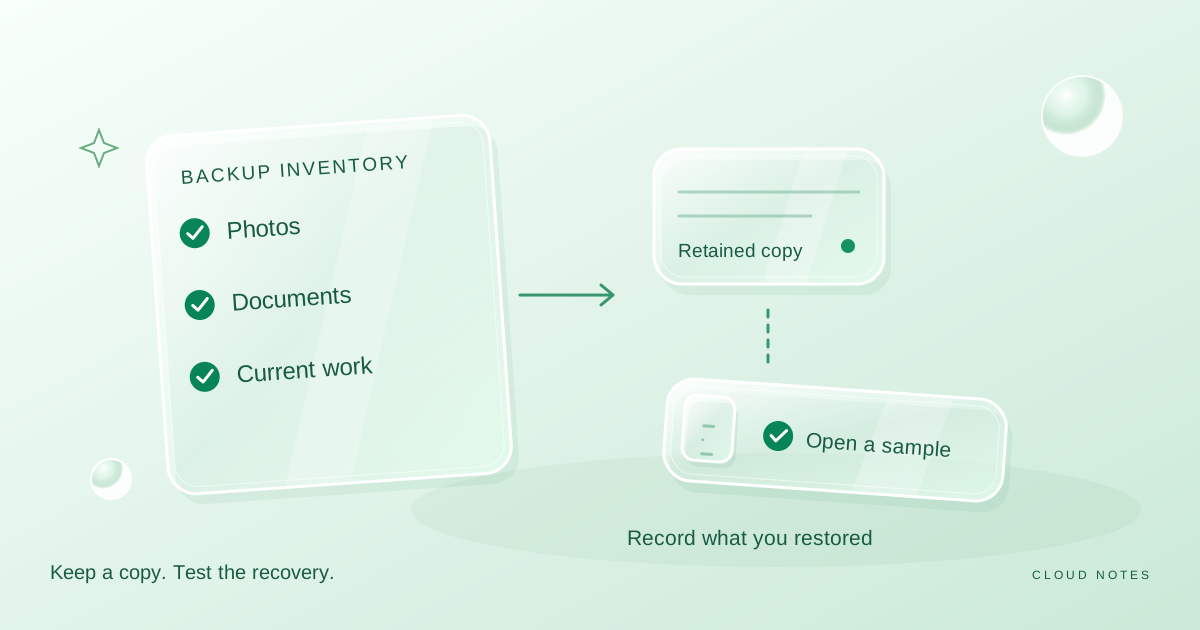
If you use an external drive, know when the last copy completed and whether it contains real file contents. A shortcut or an online placeholder may not contain the document you expect. Open a sample from the destination after copying.
Keep account recovery information securely accessible outside the account it protects. Avoid storing recovery codes in a shared family folder or publishing them in a checklist. The checklist should say where the secure copy is held, not reproduce its secrets.
Practise on a harmless file
Create a new text document containing an obvious practice phrase. Save it in the location you normally use, allow the intended sync or backup to complete, and inspect the destination. Change the phrase and check the current copy again.
Next, use the provider's documented recovery process to retrieve an earlier version or a deleted practice file, if your plan supports it. Never experiment by deleting valuable material. Note what worked, which account you needed, and how long recovery took.
If an older version cannot be recovered, do not treat this as a failed test to ignore. It identifies a gap. Add a retained copy, change the workflow or decide explicitly that this particular data is replaceable.
Keep an independent copy for important material
A practical personal setup might combine daily sync with a scheduled copy to a separate drive and a copy outside the home. The exact setup depends on your needs. An independent copy should not be casually overwritten by every mistake in the working folder.
Choose a schedule based on how much recent work you could afford to lose. A weekly copy leaves a different possible loss window from a daily copy. After major work, such as editing a photo collection or finishing an important document, make an extra retained copy before cleanup.
Review the plan after replacing a device, changing accounts or cancelling a subscription. A recovery route that belonged to an old account is easy to forget.
Your recovery card
- Important file groups and their primary locations.
- Independent copy locations and last successful copy dates.
- Retention limits checked for your actual account.
- A secure route to account recovery information.
- Date and result of the last harmless restore test.
Compare the failure you want to survive
A useful recovery plan starts with the failure, then identifies a copy that remains usable. The following examples are hypothetical and describe questions to test, not features guaranteed by every cloud service.
| Possible problem | A question to answer | Evidence to keep |
|---|---|---|
| Broken laptop | Can I open the file from another permitted device? | Sample opened from the other location |
| Accidental edit | Is a usable older state retained? | Harmless earlier version recovered |
| Account access lost | Can I reach an independent copy? | Recovery route outside that account |
| Damage at home | Is a copy kept elsewhere? | Offsite location and latest copy date |
Consider a manuscript you edit every day. A second device showing the newest synced file may help if the laptop breaks. It may not help if the newest file contains an accidental edit that propagated everywhere. In that case the relevant evidence is an older recoverable state, not the number of devices that show the current state.
Write two separate completion checks: the new file appears where expected, and an earlier harmless state can be retrieved where your plan promises retention. If only the first succeeds, label the setup as working sync with an unresolved recovery gap.
Record the result without recording secrets
In your recovery log, write the file group, the destination, the date tested and what you actually opened. Avoid entries such as secure or fully protected, which do not explain the test. Do not put account passwords or recovery codes into an ordinary worksheet.
Download the backup inventory and restore log. It separates planned copies from observed test results. For the copying schedule itself, continue with the backup checklist guide.
A three-failure recovery rehearsal
Use a harmless sample file and write a separate expected result for each failure below. These are **test scenarios**, not evidence that a provider has been checked on your behalf. The distinction matters: a synced second device can solve one failure without solving the other two.
| Rehearsal | Preparation | Passing observation | What to do if it fails |
|---|---|---|---|
| Laptop unavailable | Locate a permitted second device or retained copy | Open the contents of the sample from the alternate location | Check that the sample was actually copied and can be opened |
| Accidental overwrite | Save two harmless versions of the sample | Recover and read the earlier phrase, not just the latest file | Check real version retention, then create a separate retained copy |
| Cloud account inaccessible | Keep an independent sample in a different recovery location | Open the file without using the unavailable account | Arrange a separate copy and verify its access before relying on it |
Log the date, device or location, sample identifier and the exact outcome using the backup inventory and restore log. Do **not** test by deleting irreplaceable material or signing out of your only recovery account. A successful sample recovery provides evidence for that sample and that route, not a universal guarantee.
Common questions
Is cloud storage bad for backups?
No. It can be part of a useful recovery plan. Check the retained history, deletion behaviour and access requirements instead of assuming all cloud products offer the same protection.
Does a copy count if I have never opened it?
It may be complete, but you have less evidence that it is usable. A small restore test is a practical way to check your assumption.
Source and scope
Microsoft: Sync your computer's files and folders with OneDrive. Consulted 14 October 2026. The workflow examples here are our own; provider recovery limits must be checked for your account.
Examples are illustrative planning exercises unless a source says otherwise. Read our editorial policy for sources, AI assistance and corrections. See example data and checking methods for reproducible calculations and practice files.