Before you start
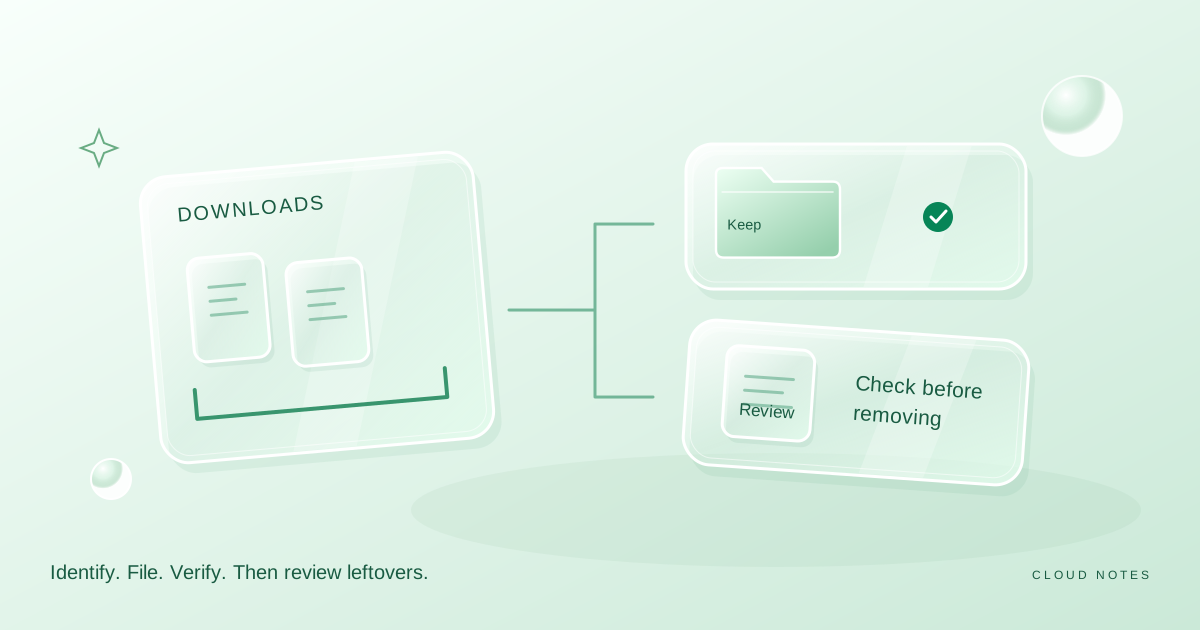
Find a document by its job rather than by the app that downloaded it.
- First step
- Choose ten ordinary files and assign each to Inbox, Active work, Reference or Archive.
Done when
- Retrieve the current repair quote and its manual without reopening the arrival folder.
- You can explain which folder is authoritative for active work.
Limit of this method: A tidy folder tree does not create a backup or establish that every duplicate is disposable.
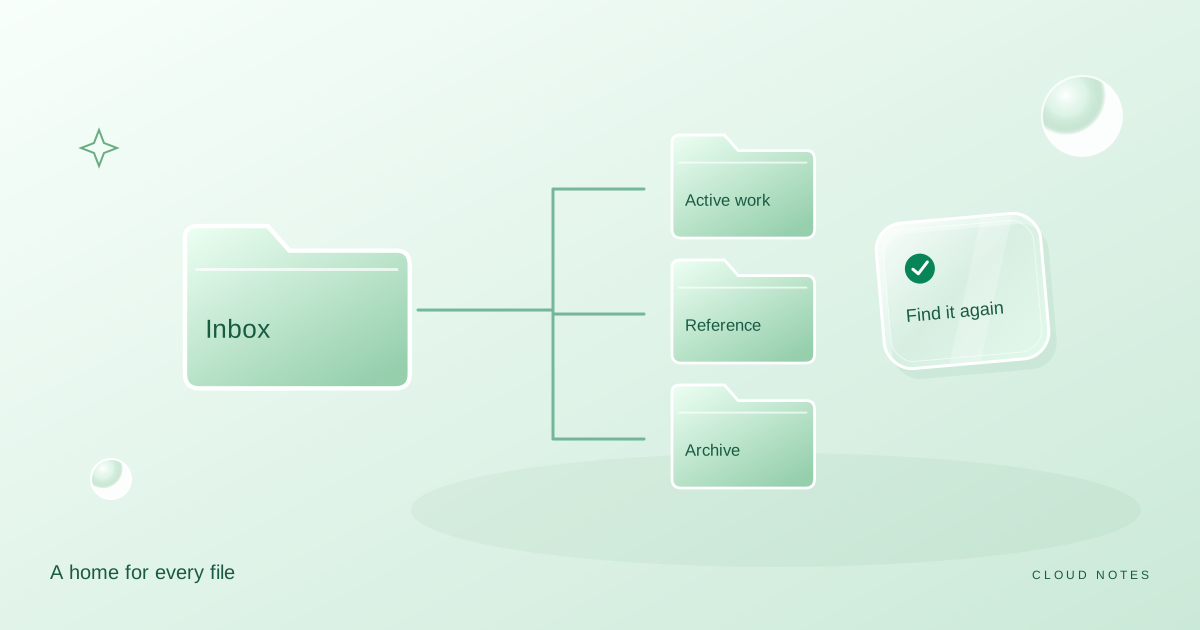

Choose a stable home for recent files and test whether you can retrieve them.
Free text worksheet. No signup. Fill it locally; the site does not receive your entries.An organised computer should make the next document easier to find. It does not need to look like a library catalogue. If filing takes longer than the work itself, the structure will probably be abandoned after a busy week.
This guide proposes a small personal system. It is a suggested workflow, not a feature of any particular storage service. You can use it on a laptop, an external drive or a cloud folder. Start with a copy of a small group of files rather than moving your entire collection at once.
Start with four destinations
Create Inbox, Active, Reference and Archive inside one clearly named personal folder. Inbox is temporary. Active holds work with a next action. Reference holds information you consult repeatedly. Archive holds finished material that still has a reason to exist.
A household example might put an unfinished travel plan in Active, appliance manuals in Reference, and last year's completed trip in Archive. A new receipt starts in Inbox until you decide whether it belongs with a purchase record. These names describe what you will do with the file, which is usually easier to remember than the program that created it.
Keep private material outside any folder that is already shared. A tidy structure does not change access permissions. If this is an employer's device or account, follow its storage rules instead of creating an independent system for company documents.
Give active work a project folder
Under Active, make a folder for each current outcome: Kitchen repair, Summer trip or Course assignment. Store related documents together even if they use different formats. A spreadsheet, a PDF and a photo can all belong to the same project.
Use a subfolder only when the folder has become hard to scan. For a small trip, a Tickets folder may help; seven empty folders for hypothetical future needs will not. A useful test is whether the subdivision answers a question you already ask, such as where the confirmed bookings are.
Put a short README text file inside a complicated project. Record what it contains, the next action and which file is the current version. This note can save more searching than a deep hierarchy.
Name the item for retrieval
A filename should contain the subject and, where useful, a date or version. For example, 2026-10-14_kitchen_quote_v01.pdf is easier to recognise than scan_0042.pdf. Use dates in year, month, day order when chronological sorting matters.
Do not add sensitive identity details to a filename simply to make it searchable. File names can appear in sharing dialogs, notifications and screenshots. A neutral label may be enough. Renaming a file also does not convert its format, so keep the original extension.
For revisions, choose one convention. Draft versions can use v01 and v02. A delivered copy can use an Approved folder with a date. Avoid a chain of names containing final, final2 and final_really_final. The naming generator in our tool shelf can suggest a consistent pattern without touching your files.
Migrate a small sample first
Choose one completed project with twenty or fewer items. Copy it into the new structure and find three files you commonly need. If you cannot find them without remembering where you put them, adjust the folder names.
Leave the original sample untouched until you have checked the copies. Before larger moves, check whether a folder is synced and whether shortcuts or other documents depend on its current location. A move can change more than the appearance of your file list.
There is no requirement to reorganise years of old material. You can start the new structure today and leave older files in a dated Legacy folder. Move an old file only when you actually need it.
Keep a ten minute weekly review
Once a week, process Inbox. Move active material into a project, file reusable information in Reference, and remove items you can safely discard. Finish by moving completed projects into Archive.
Set a limit on the review. If Inbox contains a large backlog, process the newest useful items first and schedule another small session. Turning maintenance into a weekend project makes the system harder to keep.
Measure the result with a retrieval test. Pick a recent receipt, a current draft and an old reference document. Can you find each one in under a minute? The time limit is a personal target, not an industry benchmark. If one item takes much longer, fix that particular path rather than redesigning every folder.
Worked example: one repair, six loose files
Imagine an appliance repair with a quote, a receipt, a manual, two photos and an older quote. This is an illustrative filing exercise. It is not a report of a customer's results.
| Item | Suggested home | Why it belongs there |
|---|---|---|
| Current repair quote | Active / Appliance repair | Supports a decision still in progress |
| Photo of the fault | Active / Appliance repair | Context for the current task |
| Product manual | Reference / Appliances | Useful after the repair is finished |
| Purchase receipt | Reference / Appliances | A retained record with a continuing purpose |
| Rejected older quote | Archive / Appliance repair | Explains a decision, if worth retaining |
The second photo needs a decision rather than an automatic destination. If it shows the same fault more clearly, keep that relationship explicit. If it contains different useful detail, keep both. Similar names alone do not establish that one is disposable.
Before moving everything, copy the manual into the proposed Reference folder and ask whether you could find it from the subject alone. Then locate the current quote from Active without opening the archive. These tests check the two different retrieval needs in the example.
If a project becomes difficult to find, add one clarification at a time: a more specific folder name, a short README or a useful date. Do not add ten levels of folders to compensate for an unclear project title.
What a finished setup looks like
You have one arrival area, an obvious current project location and a retained reference copy. Another person you choose to help could understand the four top level folders from a short explanation. Completed projects have a destination without needing to be deleted.
Download the folder map worksheet and fill in the intended home of five real files. The worksheet is blank apart from clearly marked examples and stays wherever you save it. Use the filename generator for a consistent date, subject and version pattern.
Common questions
Should I file by year or by subject?
Use subject folders when you usually search by purpose. Add years inside a subject when time matters. A yearly top level works well for records that you naturally request by year, but can scatter a project that spans two years.
Do I need a separate archive drive?
Only if capacity or access needs justify it. An Archive folder is an organisational choice. It is not automatically a backup, even when it sits on another drive.
What if I stop doing the review?
Resume with the next ten items. The structure should tolerate a missed week. Reduce the number of decisions if the routine repeatedly feels too demanding.
Examples are illustrative planning exercises unless a source says otherwise. Read our editorial policy for sources, AI assistance and corrections. See example data and checking methods for reproducible calculations and practice files.