Before you start
Close a bounded set of loose ends without turning a weekly review into a migration.
- First step
- Choose one current workspace and set a twenty minute limit or the shorter reset described below.
Done when
- Loose files, tabs and notes in that chosen scope have a named next action.
- You recorded the actual recovery observation separately from a ticked reminder.
Limit of this method: The checklist records what you tick; it cannot inspect files or prove that a backup completed.
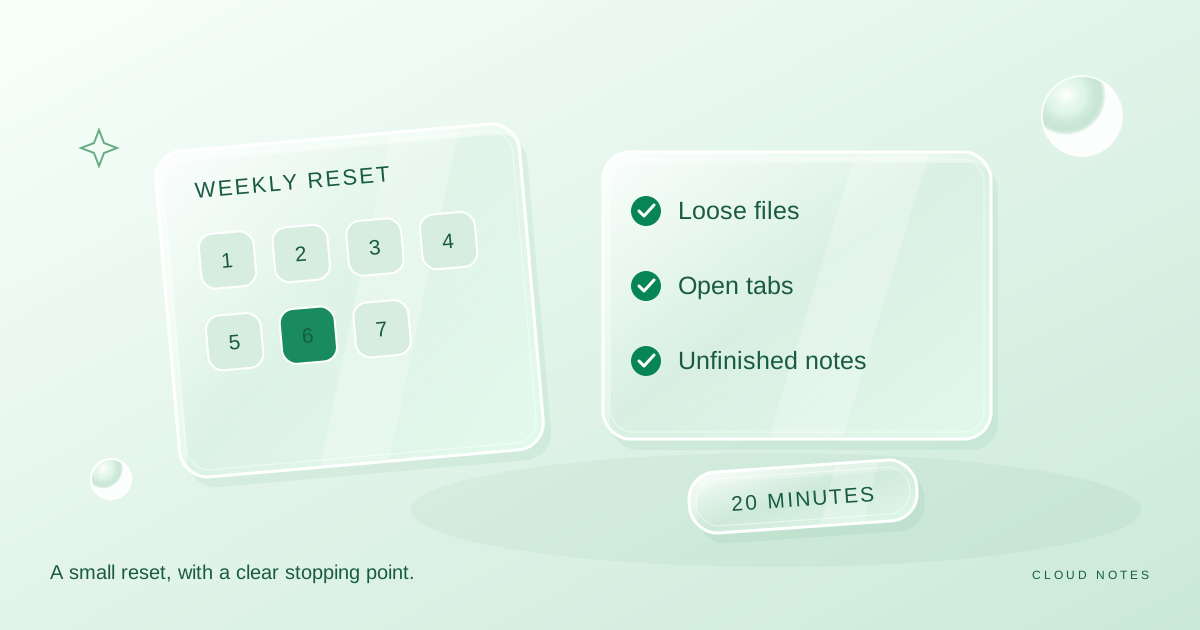

A bounded routine for files, tabs, notes and the next useful action.
Free text worksheet. No signup. Fill it locally; the site does not receive your entries.A weekly reset should prepare you for the next week. It should not become an open ended cleanup of every device and account. Twenty minutes is a suggested starting budget, not a promise that every collection can be fixed in that time.
Choose one device and one workspace. Use the interactive checklist if you want a reminder of the steps. It can remember your progress in this browser when you enable saving; it does not read or organise your real files.
Spend the first two minutes deciding the scope
Look at what is actually getting in the way. Perhaps your Downloads folder contains recent receipts, your browser has research tabs, and three notes need a next action. Write those three problems down.
Do not include a full photo archive migration or a change of storage provider. Those jobs need their own time, preparation and recovery plan. Put them on a maintenance list for later.
If the week has been unusually busy, shrink the reset to one useful action. Consistency should not require ignoring urgent responsibilities.
Process loose files for six minutes
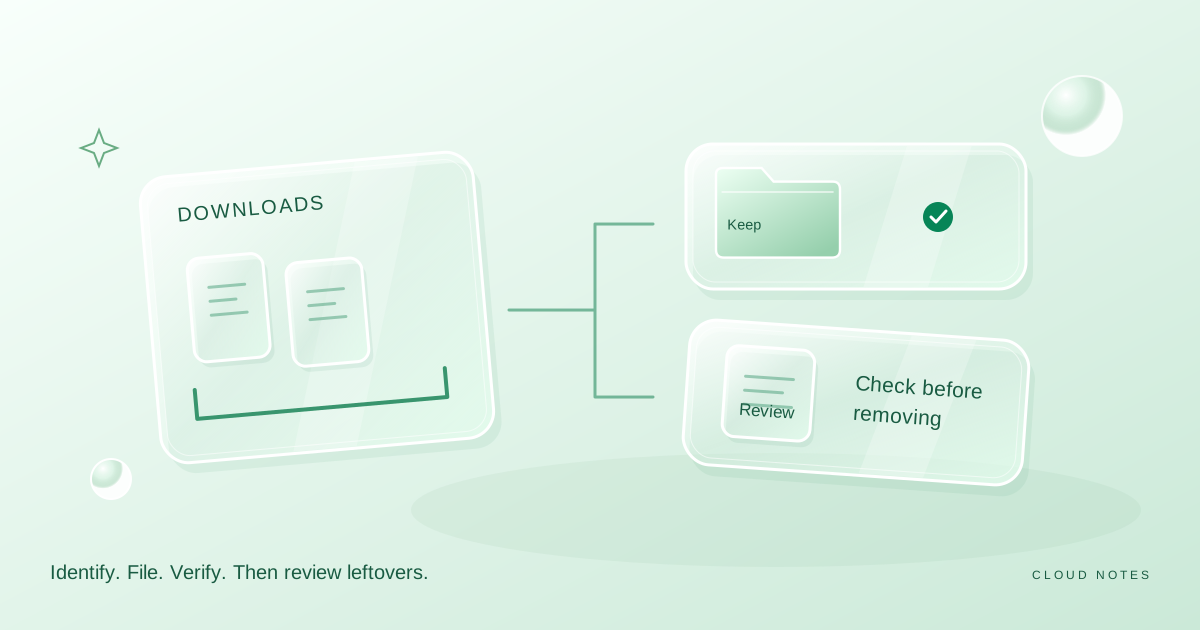
Start with recent items you recognise. Move an important document into its project folder, file a receipt, and mark unknown downloads for inspection. Do not delete unfamiliar items just to lower the count.
Rename a vague document only after identifying it. Keep the original extension. Open a moved file from its new location if it is important or relies on linked material.
Stop at the time limit. A visible queue of unresolved items is more honest than a rushed deletion that hides the problem.
Give tabs a decision for four minutes
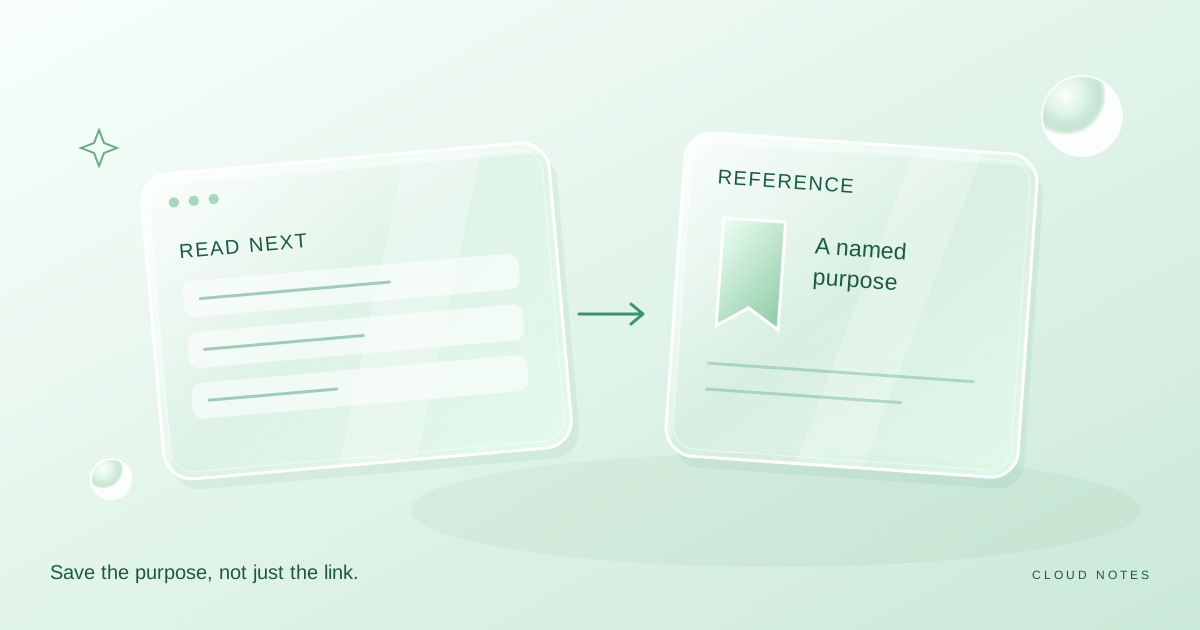
For each relevant tab, choose use now, save for a named purpose, or close. Save research with a short note explaining why it mattered. A bare link can be difficult to understand next week.
Keep a small current reading list. If a page has been waiting for months with no clear purpose, consider removing it from the active list. It can remain in a reference collection if it still has value.
Avoid opening every saved link during the reset. That changes a maintenance session into another browsing session.
Review unfinished notes for four minutes
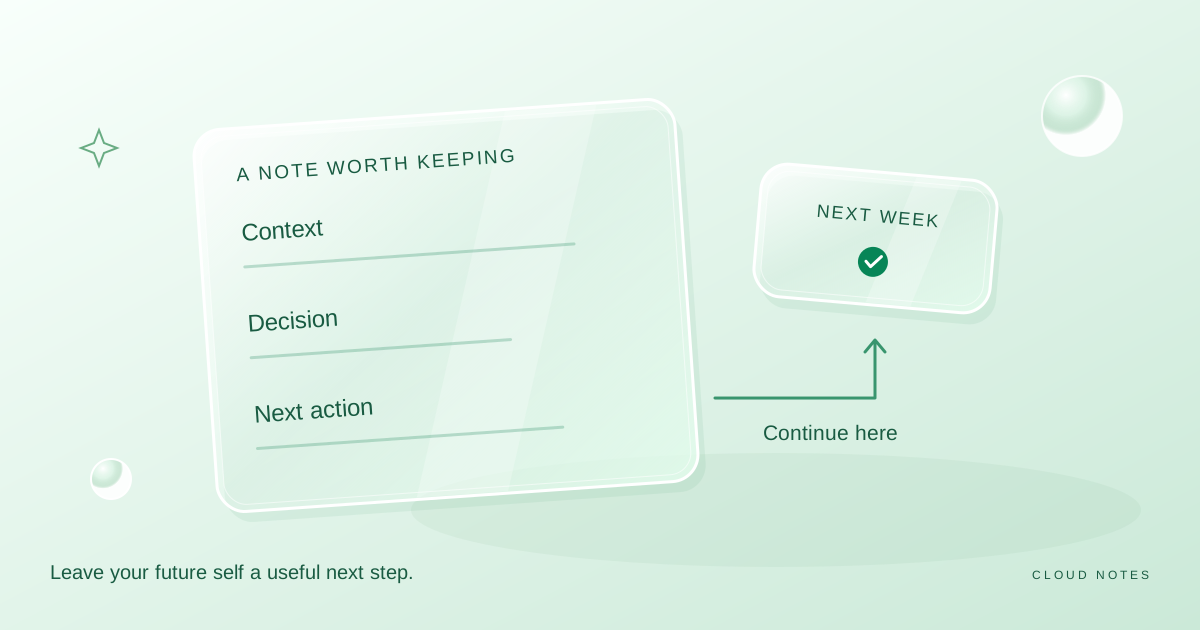
Find the notes you created this week. Give each useful item a next action, a reference destination or a discard decision. A note that says book tickets should include enough context to act: destination, dates to check and where the options are stored.
Separate tasks from interesting ideas. An idea is allowed to remain an idea. Do not create a deadline for every thought simply because it appeared in a note.
Choose one small outcome for the next day. The reset works best when it ends with a clearer starting point, not a huge newly expanded task list.
Check recovery status for three minutes
Look at the last completed backup or copy record for important files. If there is an error, add a specific follow up action. A quick glance does not replace a restore test, but it can reveal that the routine stopped.
If you created important new material this week, confirm it belongs in the intended copy routine. Files placed outside the usual folder can be missed even when the routine itself works.
Schedule a harmless restore test separately if it is due. Do not delete a valuable original to prove the backup works.
Use the final minute to close the loop
Record the remaining issues in one place. Choose a date for the larger job if it matters. Put the current work in a known folder and close the reset.
If the routine consistently runs long, identify the step consuming most of the time. Reduce that step's scope or schedule it independently. The purpose of a weekly reset is repeatable maintenance.
Make the checklist personal
The default checklist covers loose files, tabs, notes, a recovery check, one next action and closing the workspace. You can print your result or reset it for the next week. Progress is a record of boxes you ticked, not proof that a backup completed or a device is secure.
After a few weeks, keep the steps that remove real friction. If browser tabs are never a problem, spend that time on your recurring issue. A useful routine should reflect your life rather than a tidy screenshot.
Choose between a full reset and a small reset
The twenty minute routine is a suggested budget. On a constrained day, use a shorter version with a clear purpose instead of doing every step hurriedly.
| Time available | Suggested scope | A sensible stopping point |
|---|---|---|
| Five minutes | File one important document and write tomorrow's first action | The document has a stable home |
| Ten minutes | Process recent files and unfinished notes | Remaining items have a known queue |
| Twenty minutes | Work through the complete routine | Loose ends and follow ups are recorded |
These options are examples, not performance standards. If identifying one unknown file takes the whole window, it is still useful to record what you learned and what needs a separate decision.
A reset is different from a migration. Replacing a cloud provider, reorganising ten years of photos or deleting a large archive requires preparation and usable copies. Capture that work on a maintenance list rather than making it an unplanned addition to this week's reset.
Separate a checked reminder from observed evidence
The checklist can remember that you ticked check backup. It cannot tell whether a copy completed or a file can be restored. Put the relevant observation in your own log, such as opened the new document from the external drive. That distinction makes the routine more useful without giving the website access to your device.
Download the weekly reset sheet for a version you can print or keep offline. Use the browser checklist if you prefer a temporary on screen reminder. Both methods depend on the actions you actually complete.
Common questions
Do I have to make everything empty?
No. A small queue can be intentional. The aim is to know what remains and where the next useful action starts.
What if I skip a week?
Resume with a bounded session. Doubling the cleanup time is optional, not a penalty you owe yourself.
Examples are illustrative planning exercises unless a source says otherwise. Read our editorial policy for sources, AI assistance and corrections. See example data and checking methods for reproducible calculations and practice files.